💡 Before You Start
80% of issues can be fixed with these two steps:
1. Restart your device (unplug for 30 seconds, then plug back in)
2. Check your internet connection (try loading a website or YouTube)
Common Issues & Solutions
Best Solution:
Watch this step-by-step video guide on YouTube to fix the "channels not loading / black screen" issue on your device:
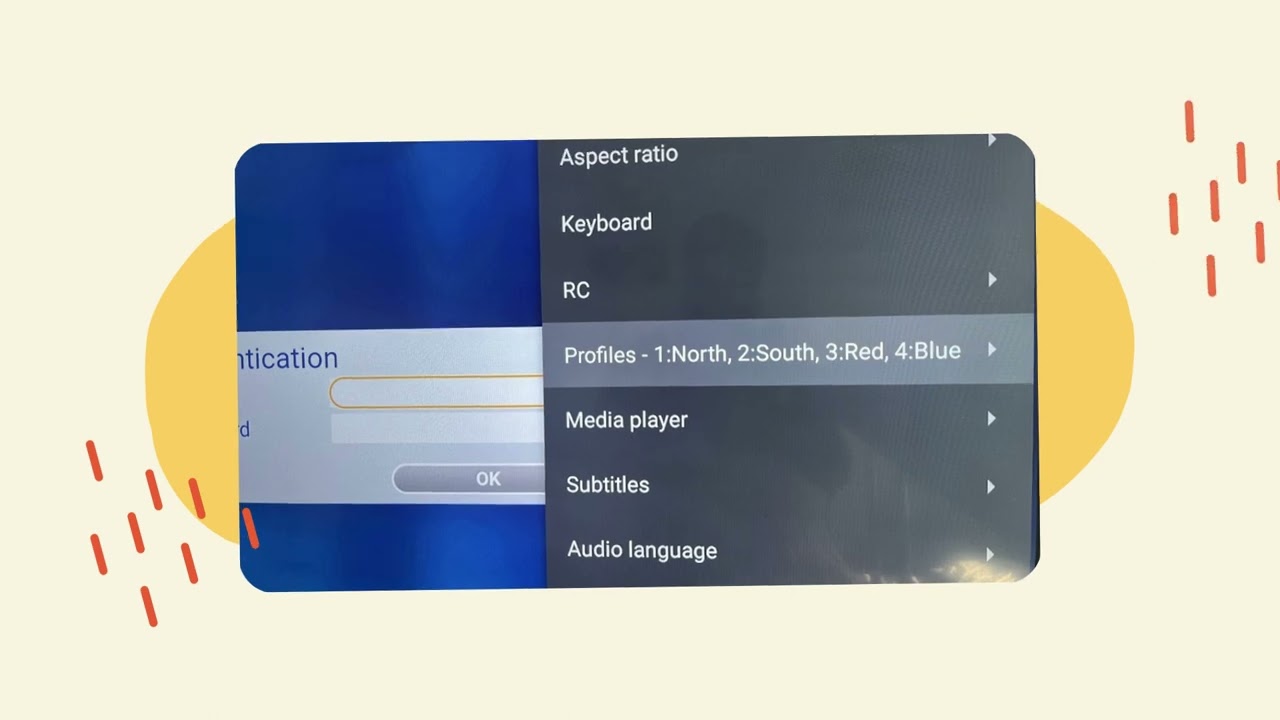
If you still have issues after following the video, contact support on WhatsApp for help.
How to find your MAC address:
- MAG Box: Look for a sticker at the bottom of your device.
- Fire Stick & Android TV: Open the MyTV.GDN app, go to Menu > Profile > #1. You can also check your activation or renewal message for your MAC address.
Tip: MAC addresses usually look like 00:1A:79:XX:XX:XX
The MyTV.GDN app uses color-coded function keys for quick actions:
- 🔴 Red: Usually for record/delete or switch audio track.
- 🟢 Green: Sort channels (by name, number, favorites, etc.).
- 🟡 Yellow: Add/remove from favorites or display info.
- 🔵 Blue: Search/find channels or access menu options.
🔥 Fire Stick doesn't have color buttons — here's how to access them:
Option 1: Configure Key Maps with Long Press (Recommended)
- Open the MyTV.GDN app and go to Settings → Key Maps
- You can map both short press and long press for the same button:
- Rewind (short press) → Rewind (normal function)
- Rewind (long press) → Blue key (Search)
- Fast Forward (short press) → Fast Forward (normal function)
- Fast Forward (long press) → Green key (Sort)
- Play/Pause (long press) → Yellow key (Favorites)
- Save and use long-press for color key functions while keeping normal functions on short press
Option 2: Long-Press Select Button
- In the channel list, long-press the OK/Select button on a channel
- A context menu may appear with options (add to favorites, etc.)
Option 3: USB Keyboard
- Connect a USB keyboard via OTG adapter
- Use F1, F2, F3, F4 keys for Red, Green, Yellow, Blue
💡 Tip: Key Maps lets you set both short press AND long press actions for the same button — this way you don't lose any functionality!
Buffering is usually caused by network issues:
- Slow internet: IPTV requires at least 10 Mbps for HD and 25 Mbps for 4K content.
- WiFi interference: Use a wired ethernet connection if possible, or move closer to your router.
- ISP throttling: Some ISPs throttle streaming. Try using a VPN.
- Too many devices: Other devices on your network may be using bandwidth.
- Peak hours: Streaming may be slower during peak times (evenings, weekends).
Test your speed: Visit fast.com to check your internet speed.
If most channels work but one or a few don't:
- Channel is down: The source for that channel may be temporarily unavailable.
- Geographic restriction: Some channels may be region-locked.
- Channel moved: The channel may have been moved to a different category or renamed.
What to do: Wait 24 hours. If still not working, contact support with the channel name.
Electronic Program Guide issues:
- EPG needs time to load: After first setup, EPG may take a few hours to populate.
- Time zone incorrect: Check that your device time zone is set correctly.
- EPG URL not set: Ensure the EPG URL is configured in your IPTV app settings.
Quick fix: Go to settings and refresh/reload the EPG data.
Audio/video sync issues:
- Change the audio track: Some channels have multiple audio tracks. Try switching to another.
- Restart the channel: Exit and re-enter the channel.
- Device processing: Older devices may struggle with high-bitrate streams.
- HDMI cable issue: Try a different HDMI port or cable.
Quick fix: Restart your device and try the channel again.
App stability issues:
- Clear app cache: Go to Settings → Apps → MyTV.GDN App → Clear Cache.
- Update the app: Make sure you're running the latest version of the IPTV app.
- Reinstall the app: Uninstall and reinstall the IPTV application.
- Device memory low: Close other apps or restart your device to free up memory.
Nothing working? We have a backup plan for you.
- Temporary access: If your main server (e.g., South) is down or unstable, we can give you access to another server (e.g., RED) for 2 days. This helps you keep watching while we see if the main issue resolves.
- Permanent move: If the problem continues, we can move your account to the new server for good.
I paid for several months (or a year) in advance. Why do I have to wait for a certain date to be moved?
Permanent server moves can only be done close to this date (not in the middle of the month). This is a system limitation, not a policy. We know it's not ideal, and we appreciate your understanding.
If you need this option, just contact us on WhatsApp. We'll do everything we can to help you get back to watching smoothly!
Still Having Issues?
Can't find a solution above? Our support team is here to help. Please have your MAC address ready when contacting us.
WhatsApp: +1 (404) 203-2746
Response time: Usually within 1-2 hours