← All device guides

Set up Google TV or Android TV

Installation steps

  1. 1

    Install Downloader

    Find Downloader by AFTVnews in Google Play and open it.

  2. 2

    Enter the code

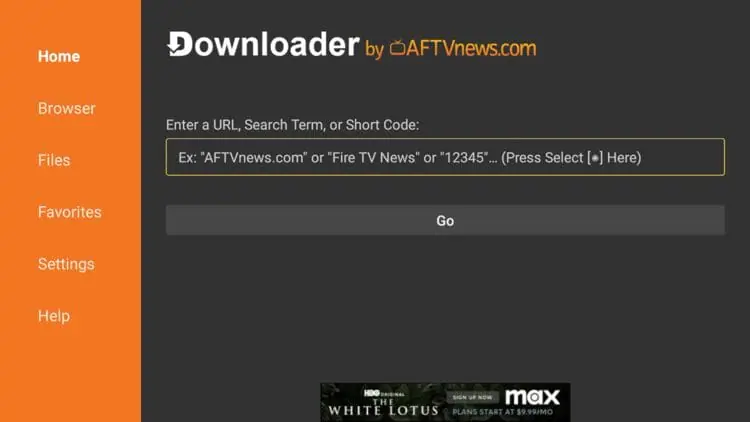
    In Downloader’s URL field, enter 2303673 and select Go. If it does not open, enter get.mytv.gdn.

    Downloader screen showing the field where you enter a URL or short code
    Enter the code in Downloader’s URL field.
  3. 3

    Install the app

    On the downloads page, choose Download MyTV.GDN STB, then select Install.

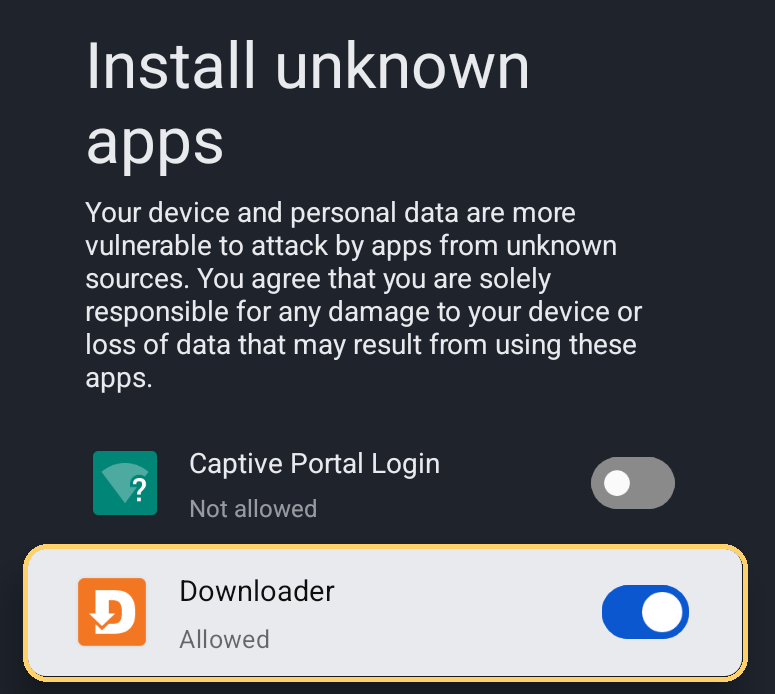
    Allow Downloader if prompted
    Google TV Install unknown apps screen with Downloader highlighted and marked Allowed

    Turn on Downloader

    At the install prompt, select Settings and turn on Downloader.
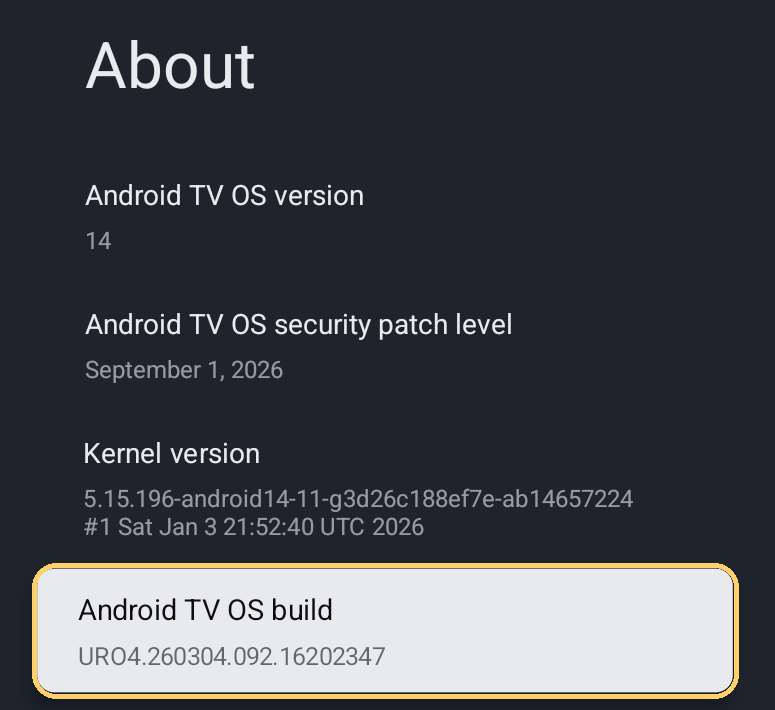
    Google TV About screen with Android TV OS build outlined in gold
    If the installer permission is hidden

    Enable Developer Options

    Open Settings → System → About. Highlight Android TV OS build and press OK seven times.
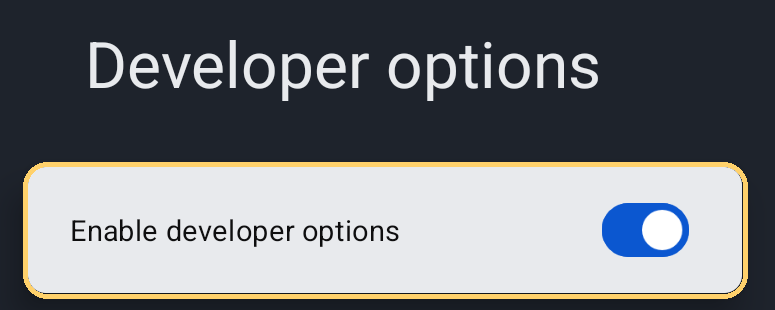
    Google TV Developer options screen with the Enable developer options switch on

    Return to Downloader

    Press Back to check that Developer options appears under System. Return to Downloader and try installing the app again.

    Open the full Google TV settings guide
  4. 4

    Send your MAC ID

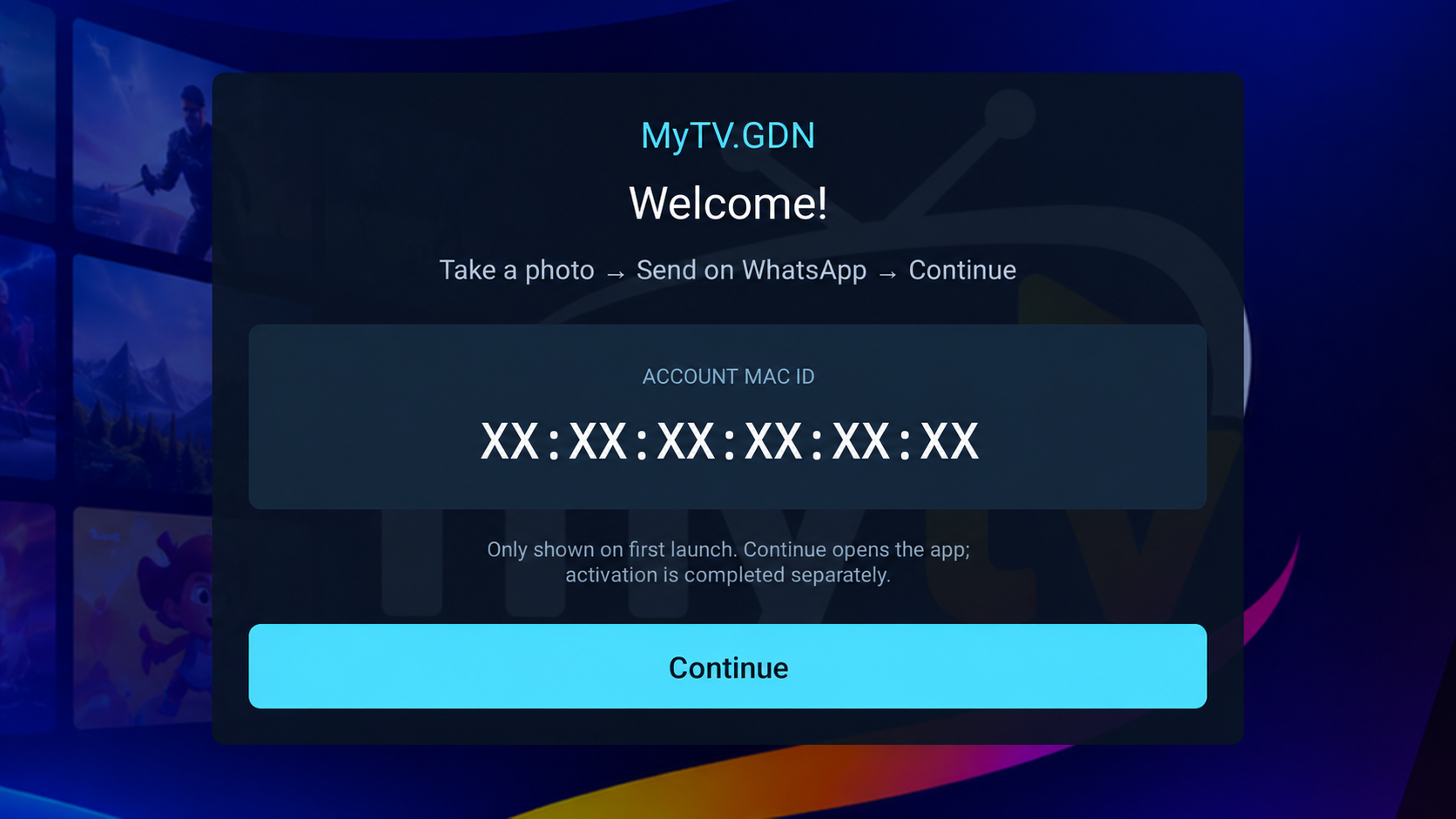
    Open MyTV.GDN STB. Its first screen shows the MAC ID. Send us a clear photo of that screen on WhatsApp.
    Look for a MAC ID starting with00:1A:80:
    MyTV.GDN STB welcome screen with the MAC ID location shown and the example ID hidden
    Look for the MAC ID on the app’s welcome screen.
    Send MAC ID on WhatsApp
  5. 5

    Post-activation · Load your profile

    After activation, open MyTV.GDN STB. Use the profile named in your WhatsApp activation message. Tap any picture to enlarge or download it.
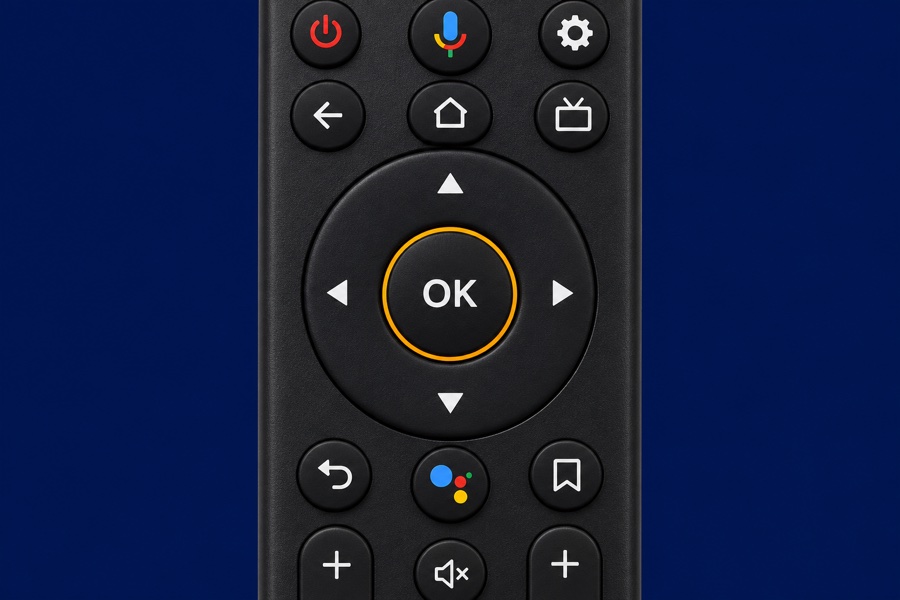
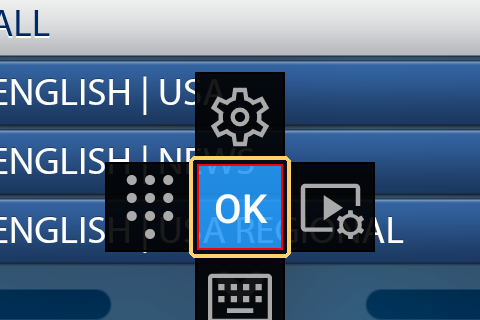
    Google TV remote with the central OK button circled in gold
    Hold OK on your remote Hold the center button on the directional pad until the quick menu opens. The button may be blank.
    On-screen OK button outlined in gold
    Start at on-screen OK The quick menu opens with OK highlighted.
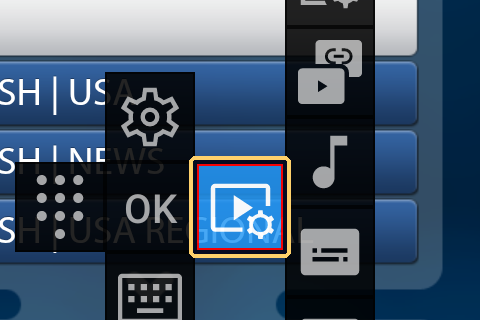
    Screen-and-gear Menu icon outlined in gold to the right of OK
    Press Right for Menu The screen-and-gear icon is highlighted.
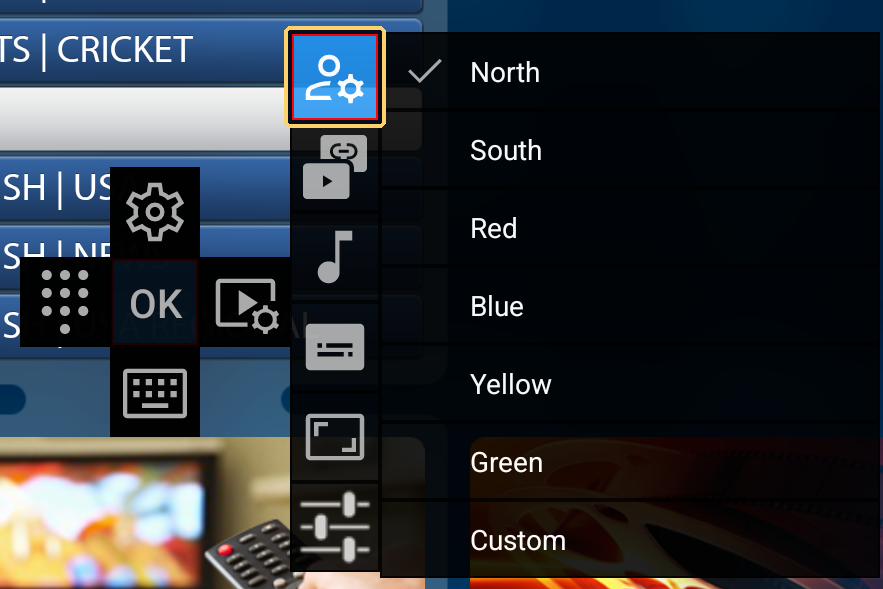
    Person-and-gear Profiles icon outlined in gold beside the list of profile names
    Press Right for Profiles Move to the profile named in your activation message and press OK.

Setup picture