Frequently asked questions
Activation and sign-in
I’m seeing an Authentication screen. What username and password do I use?
There’s no username or password to enter. Reload your session and select the profile listed in your MyTV.GDN activation message.
My account was just activated. Which profile should I load?
Open your activation message from MyTV.GDN on WhatsApp and load the profile named there. Your account can be assigned to any server. We assign profiles internally to distribute customers across servers.
If you can’t find the message, contact support to confirm your assigned profile.
What’s the difference between North, South, Blue, and Red? Can I switch?
These profiles connect your app to different MyTV.GDN servers. The servers use different suppliers, so their channel lineups and feeds can differ. For example, North and Blue might carry the same channel from different feeds, or one might carry a channel the other doesn’t.
Use the profile named in your activation message. If it’s working well and has the channels you watch, keep using it. If you’re looking for a specific channel, send us your current profile and the channel name on WhatsApp.
Think of a dealership that sells several makes of car. If yours has a problem, the dealership might lend you another car while it looks into the issue. A permanent swap would be a separate arrangement and could cost extra, even at the same dealership.
We’ll do our best to help if you have a problem. As a courtesy, we may offer a temporary backup profile while we troubleshoot, if one is available. It may have its own expiry date. See what to expect if you request a permanent move.
Can I permanently switch servers or transfer my prepaid time?
We’ll do our best to help. As a courtesy, we may offer a temporary backup, like a dealership loaner, while we troubleshoot if one is available. We also review requests for permanent moves case by case. Your current service was already paid for, so a move may cost extra and some prepaid time may be lost.
We’ll discuss the options and explain any cost or lost time before you decide. A move or credit is not guaranteed, and a confirmed permanent move is final. See how server moves work.
Devices and installation
Which devices can I use?
Most customers use MyTV.GDN STB on Android or compatible Fire TV devices. We also provide third-party app setup guidance for Samsung and LG Smart TVs, iPhone, iPad, Apple TV, Windows, macOS, Linux, and Roku. Third-party player compatibility can vary; contact us if you need help. You can use a supported device you already own; there is no box to buy. See the device guide.
Where do I find the Downloader code and MAC ID?
On Android or Fire TV, enter 2303673 in Downloader or visit get.mytv.gdn, then install mytvgdn-1.0-installer.apk. MyTV.GDN STB shows the MAC ID on its first screen. If installation is blocked, use the picture guide. For Samsung or LG Smart TVs, look for the yellow Your Virtual MAC line in Smart STB’s device info, or send a clear photo of its portal QR code screen. Follow the Smart STB guide.
How do I find my MAC ID?
In the current MyTV.GDN STB app, open Settings → Help & Support → My Account. Your account MAC ID starts with 00:1A:80:. See the illustrated MAC ID guide, including steps for the legacy Fire TV app.
How do I reset the app?
Only reset the app when support asks you to. A factory reset wipes the app and requires reactivation. See the reset guide.
How do I use the red, blue, green and yellow keys?
The colored keys correspond to the actions shown on screen. Use the blue key for search. Look at the on-screen labels for the current actions of the red, green and yellow keys. See the illustrated color keys guide.
What are the passwords?
See the password and Fire TV keyboard guide.
What if I get a new TV or device?
Install the app on the new device and send support a screenshot of its new MAC ID on WhatsApp. Support can update or restore your account. Find your MAC ID.
Which device should I buy?
Compare the devices below and check the retailer for current prices and availability.
Need a device?
These are examples to compare. MyTV.GDN does not endorse or sell these devices.
| Device | Price guide | Setup | Retailer |
|---|---|---|---|
| Fire TV Stick 4K Plus | See current price | The 4K Plus runs Fire OS. The 4K Select runs Vega OS and can’t install our app. Fire TV setup guide | Target |
| onn. 4K Plus | About $60 | Google TV streaming box. The U.S. model is listed for use in the U.S. and Puerto Rico. Google TV setup guide | Walmart |
| Infomir MAG544w3 | About $100 | Linux set-top box with a separate setup process. Check with us first. | Infomir |
| Formuler Z12 Pro | About $190 | Uses MYTVOnline 4. Check with us first. | Formuler Store |
Approximate prices in USD. Check the retailer for current pricing and availability.
Service and plans
What can I watch with MyTV.GDN?
Explore thousands of live TV channels, plus movies and TV shows on demand. The selection spans sports, news, music, kids’ programming, South Asian and international entertainment, and adult content. Ask us about a specific channel before you choose a plan.
Can you add a movie or TV series I want?
The library is maintained automatically and includes over 10,000 channels and more than 200,000 movies and TV shows combined. A library this large cannot be maintained individually by hand. You can ask us about a specific title, and we will make a best effort, but we cannot guarantee it will be added.
How much does it cost?
Plans start at $36 for three months on one device. Six months is $66 and one year is $120. Longer plans offer a choice of extra time on one device or one year each on multiple devices. Compare every plan.
Can I return a purchase or get a refund?
All sales are final. No returns or refunds. This applies to plans, renewals, and promotional purchases.
Do you accept Zelle, Venmo, or other payment methods?
Cash App is the only payment method we accept. We don’t accept Zelle, Venmo, PayPal, or direct card payments. If you’re new to Cash App, see how to set it up and pay.
How do I get started?
Choose a plan, install the recommended app for your device, and send us the MAC ID shown in the app. When you’re ready to pay, follow the Cash App instructions.
I’m already a customer. How do I renew?
Choose your next plan and pay through Cash App using the renewal instructions. Message us on WhatsApp as soon as you pay and wait for us to confirm we received your payment. If the name on the Cash App payment differs from your WhatsApp name, include the name shown on the payment.
How do I request the free trial?
Visit the New Customers page, choose your device and follow its setup and activation instructions. Send us your MAC ID on WhatsApp; we will provide a two-day trial and tell you which profile to load and when it expires. When the trial ends, message us on WhatsApp if you would like to continue with a paid plan.
Can I watch on a second TV?
One subscription covers one screen. Same-home multi-screen viewing on one subscription is not available yet and is being developed. Contact us for options for a second device.
I paid, but my account has not been renewed. What should I do?
Renewals are processed manually. Message us on WhatsApp as soon as you pay and wait for us to confirm we received your payment. If the name on the Cash App payment differs from your WhatsApp name, include the name shown on the payment. For future payments, use the current Cash App tag on the payment page.
Troubleshooting
Why is MyTV.GDN muted or quiet when my TV volume is up?
The app has its own volume. On Fire TV Stick, play a Live TV channel full screen. Press Right on the remote’s directional ring to raise the app volume or Left to lower it. See the Fire TV volume guide and pictures.
Why does my screen say “Your STB is blocked”?
This usually means the account has expired. Exit the app, check your expiry date and reload your profile on Fire TV or on Android TV. Switch profiles only if support asks you to. If it remains blocked after renewal, message us on WhatsApp.
What can I do about buffering or missing channels?
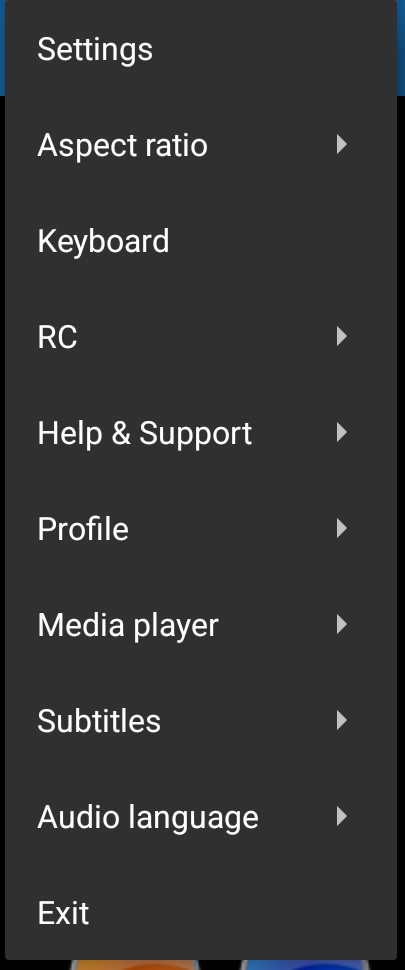
Open the MyTV app and open the same menu where you select your profile. Select Media player, then choose EXO or Auto where available. Exit the menu and try playing a channel again.
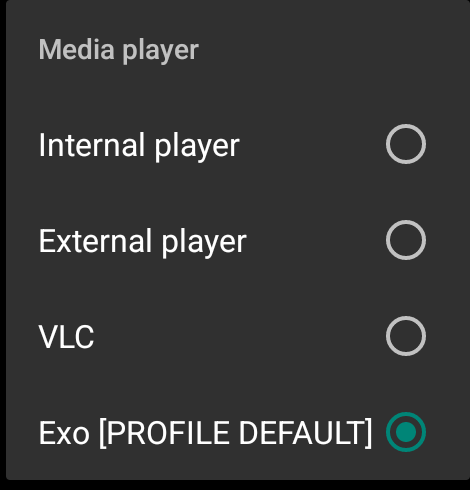
If the problem continues, reload your profile, try another network, and contact support. Switch portals only if support asks you to.